How to Use StickyNoteSync for Private Transcription
Published on December 26, 2025
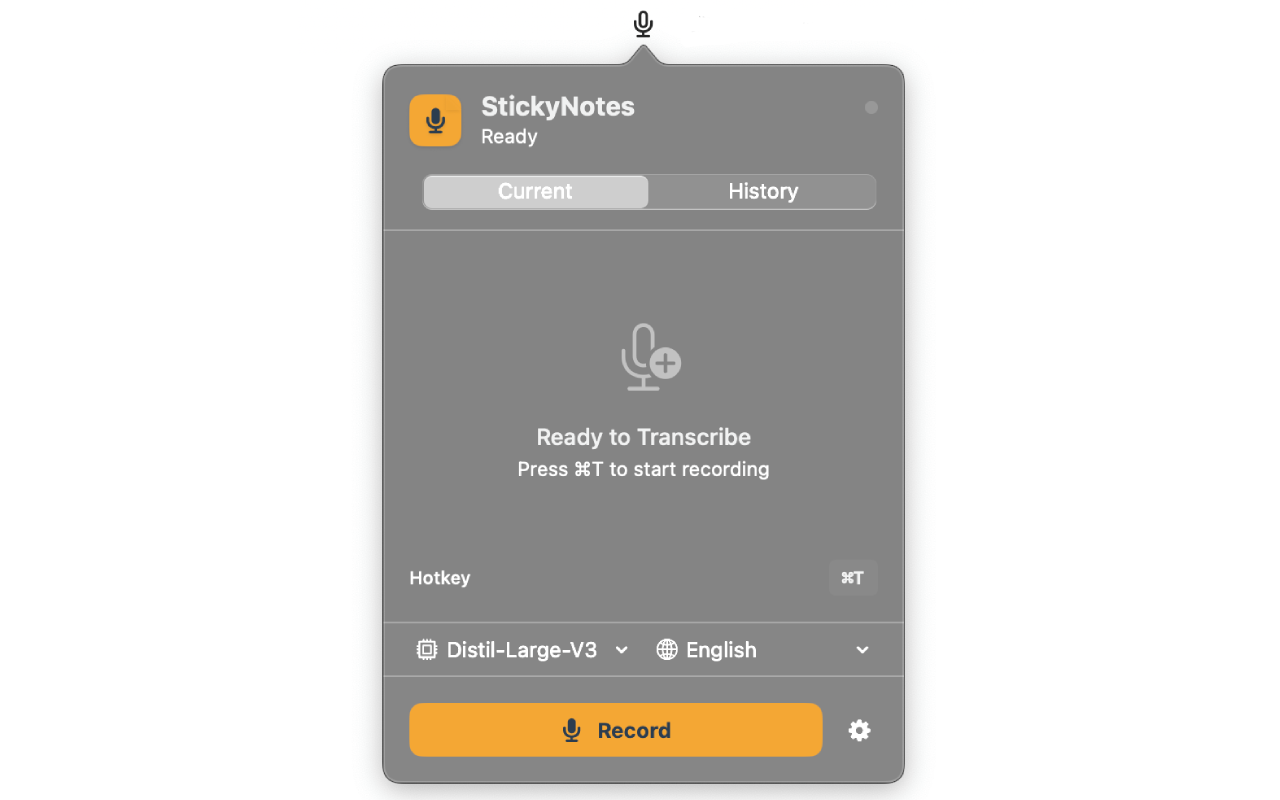
StickyNoteSync is designed to be the most private and seamless way to turn your voice into text. Because it works entirely on-device and syncs via your own iCloud account, you never have to worry about your audio or transcripts being stored on a third-party server.
Here is how to get started in three simple steps.
1. Download and Grant Permissions
First, download StickyNoteSync from the Mac App Store or iOS App Store. When you first open the app, it will ask for Microphone permission.
This is required to capture your audio. Unlike other apps, StickyNoteSync processes this audio locally using Apple’s Neural Engine.
2. Start Your First Recording
Recording is as simple as it gets:
- On Mac: Use the global hotkey (default is
Cmd + T) or click the Record button in the menu bar app. - On iPhone: Open the app and tap the large microphone button.
- On Apple Watch: Tap the complication or open the app and start speaking.
You will see your words appear in real-time as you speak.
3. Seamless Syncing via iCloud
One of the best features of StickyNoteSync is that it uses your existing iCloud account. There is no “StickyNote Account” to create.
As long as you are signed into the same Apple ID on all your devices:
- A note recorded on your Watch while running will be waiting for you on your Mac when you get home.
- You can review meeting notes on your iPhone while commuting.
Why Privacy Matters
Most transcription services require you to upload your audio to their servers. They use your data to train their models or, worse, sell insights from your private conversations.
With StickyNoteSync, the model is already on your device. Your data stays where it belongs: with you.
Ready to try it out? Download StickyNoteSync now and start transcribing with total peace of mind.